
ContentsBoat reservations
At the pontoon
Boat reservations
Reserve a boat for a regatta, a course or a weekly slot. The boathouse screen shows it as reserved and warns at departure, never stopping anyone going out.
- Where to find it
- Reservations; module to turn on in Management › Modules
- Available since
- version 2.1 (2026)
- Module to turn on
- Reservations. Turned on by the “Full club” profile and by an efa2 import that contains reservations.
What it is for
Keep a boat for a regatta, a training weekend or the junior squad’s session, and let everyone know when they pick a boat, without phoning an official or checking a separate timetable.
The page is open to everyone, from the boathouse computer, with no admin password. A reservation informs the crew; it never stops them going out.
In the app
“Adds a Reservations page, a “reserved” label on the boats concerned in the boathouse, and a notice when an outing would overlap a reservation. Starting an outing is never blocked.”
What the pontoon sees
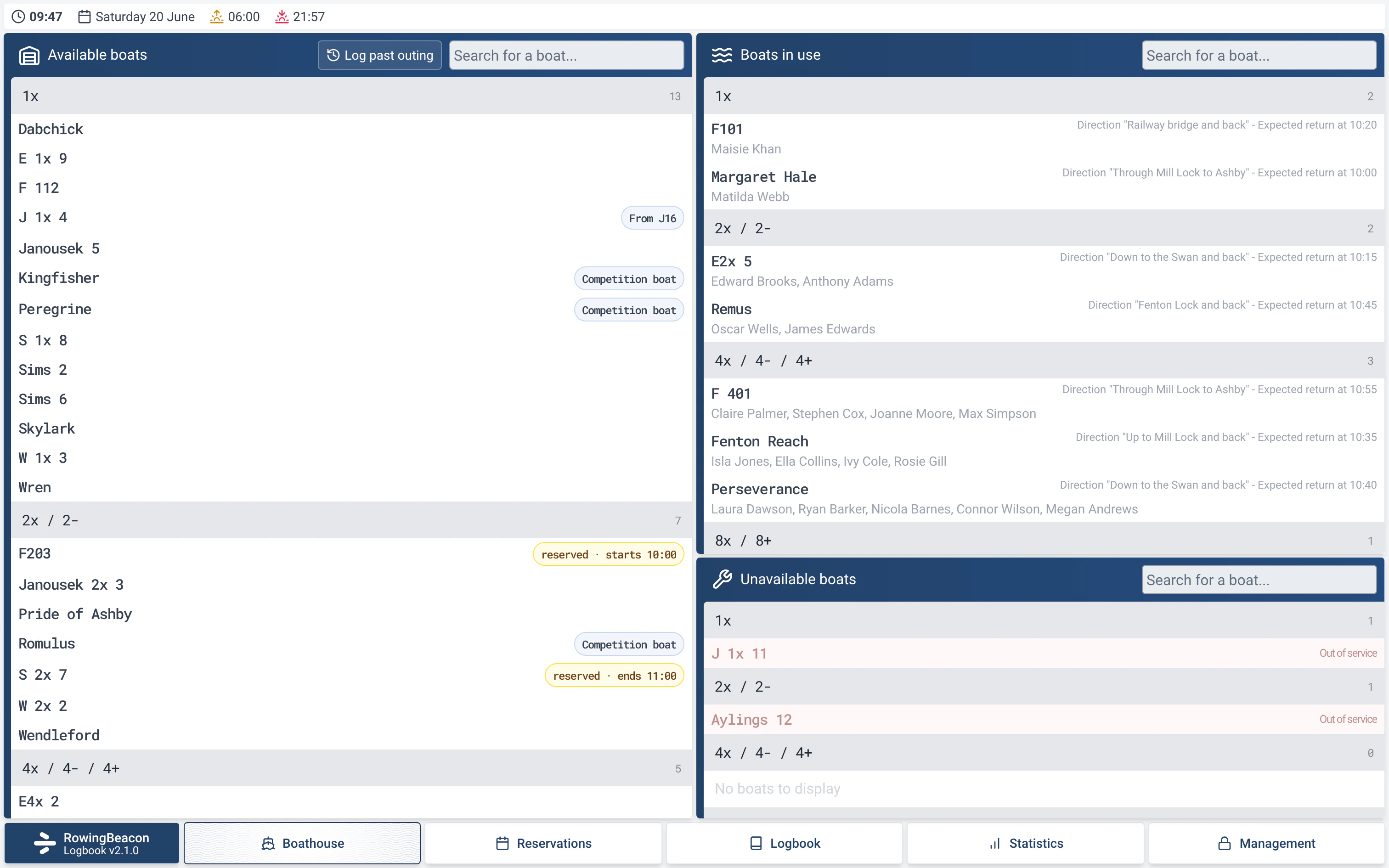
- A yellow badge, “reserved · ends 20:00” (reservation in progress) or “reserved · starts 18:00” (upcoming reservation), appears on the boat in the Boathouse screen. If the time is not today, the day is shown.
- The badge appears a few minutes before the slot: 60 minutes by default, which can be changed in the module’s options.
- Hover over the badge to see who reserved the boat and why.
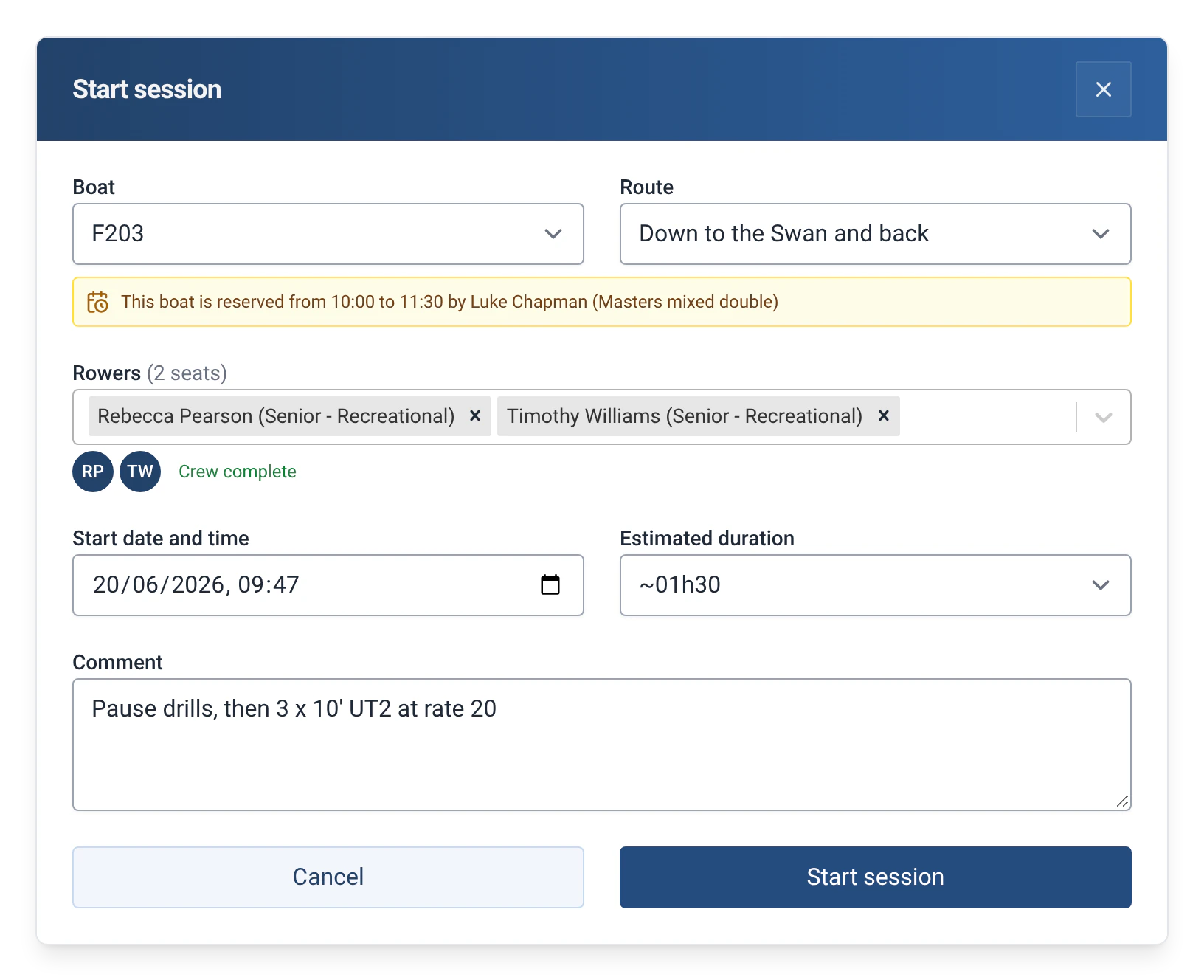
- At departure, if the outing overlaps a reservation, the “Start session” window shows a warning, for example “This boat is reserved from … to … by …”. It is for information; the crew can still go out.
- If the person who made the reservation is in the crew, the warning does not appear.
How to use it
- Turn on the module: Management › Modules, with the admin password, then “Reservations”. The Reservations tab appears in the navigation bar.
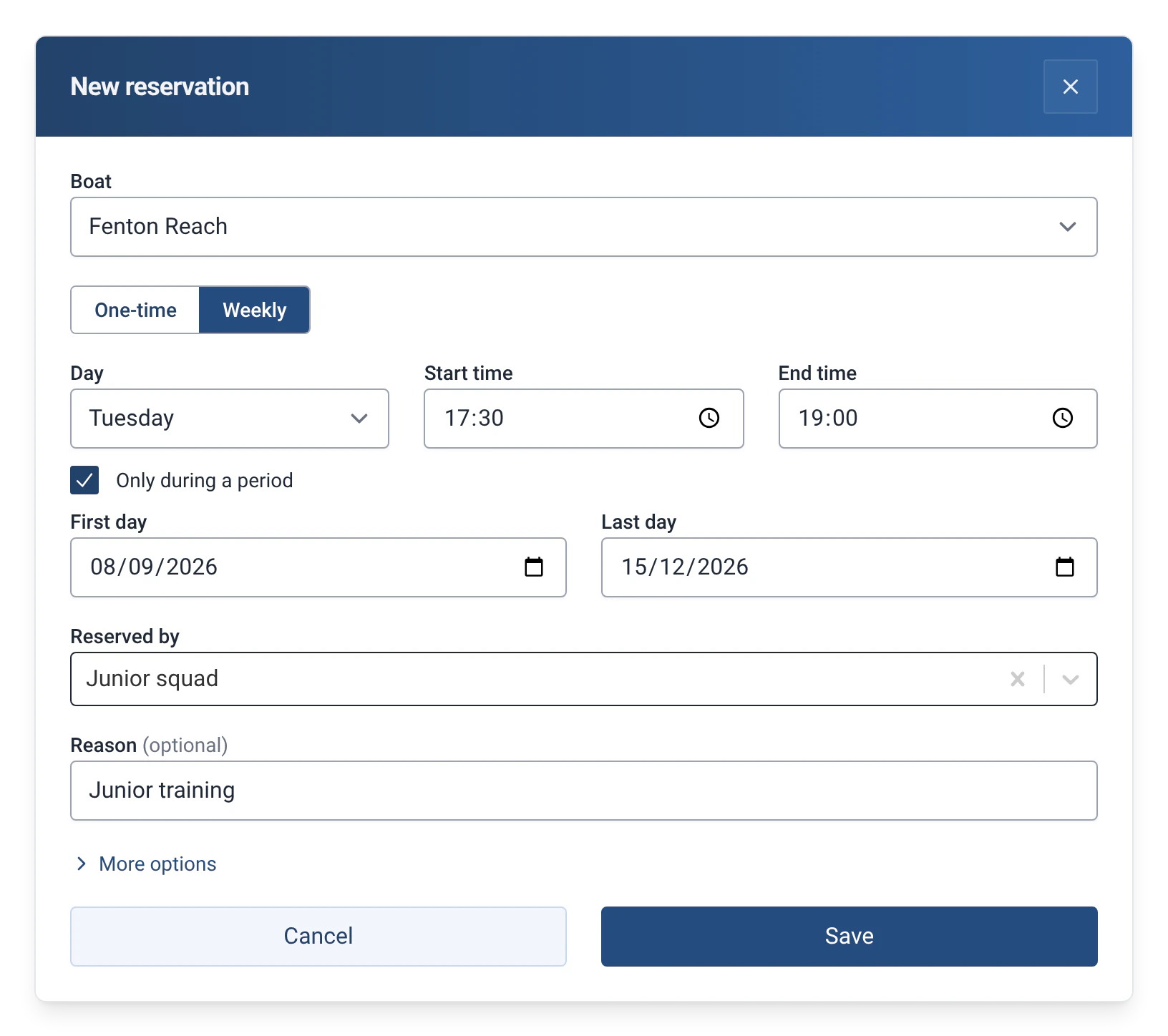
- In that tab, click “New reservation” and choose the boat. “Repeat” is “One-time” or “Weekly”.
- One-time: enter the start date and time and the end date and time. The reservation can cover several days, for example a regatta weekend.
- Weekly: choose the day and the hours. Tick “Only during a period” to set the “First day” and the “Last day”, for example for a junior squad from April to October.
- In “Reserved by”, search for a rower or type a free name, for example a crew or a group. Add a reason (“Regatta, course, maintenance…”). A contact (phone or email) is possible under “More options”.
- Confirm. If the boat is already reserved for that slot, the app refuses and names the conflicting reservation: “This boat is already reserved by …”.
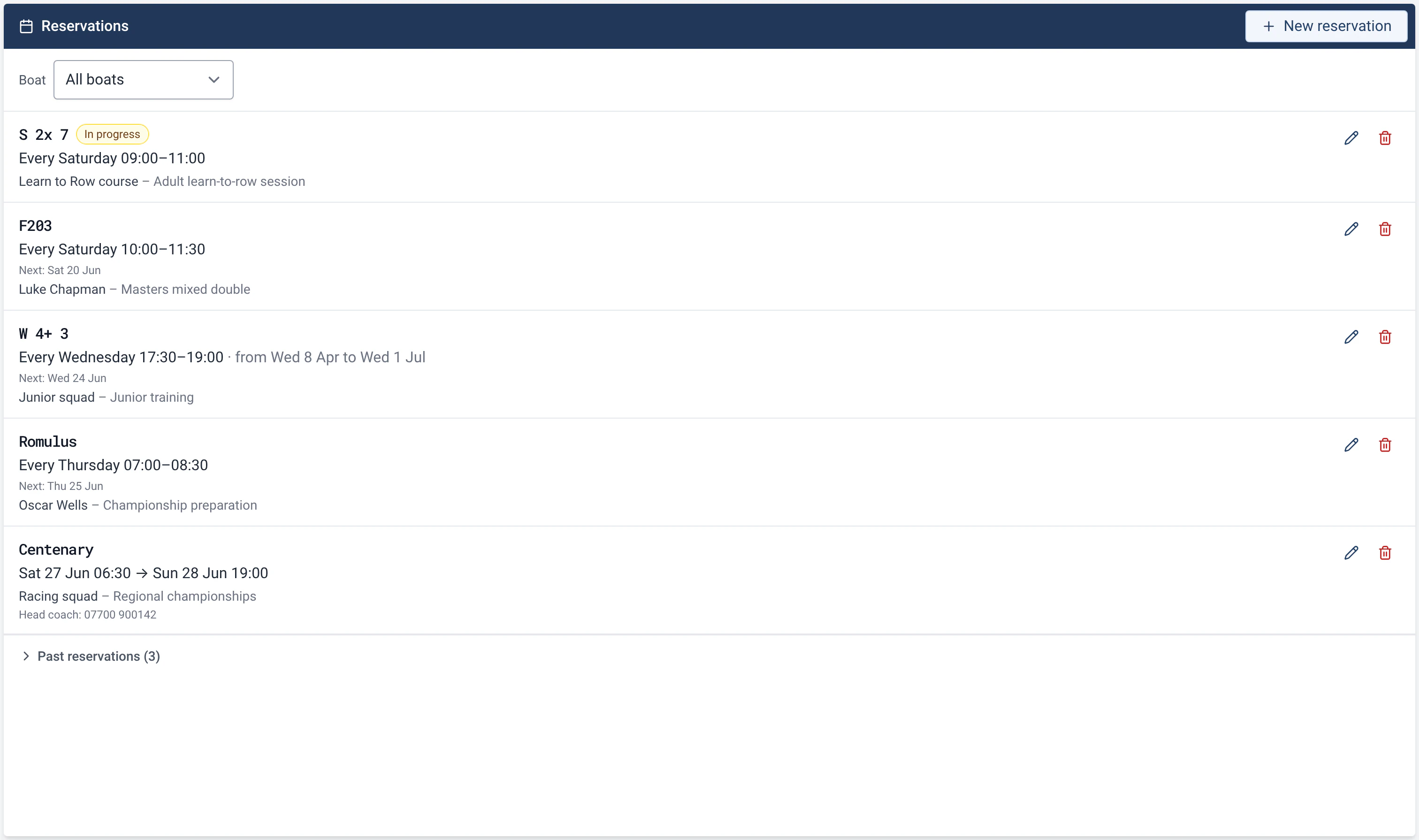
- The list sorts upcoming reservations by next date. The one in progress carries the “In progress” badge. “Past reservations” are collapsed, the “Boat” filter limits the list to one boat, and each line can be edited or deleted.
Settings
- Display lead time: in Management › Modules, the “Show a boat as reserved 60 minutes before” option sets how many minutes ahead the badge appears.
- Who reserves: a rower from the club’s list, or a free name (a crew, a group). The reason and the contact are optional.
Two ways to reserve
| Repeat | What you enter |
|---|---|
| One-time | A range of dates and times, possibly over several days: a regatta, a training weekend, a group outing. |
| Weekly | A day of the week and a time slot, with a first and a last day if needed: the junior squad’s session from April to October. |
Limits and details
- A reservation never stops anyone going out: the badge and the warning inform, and the crew decides.
- Two reservations of the same boat cannot overlap.
- The page is open to everyone, with no password: anyone at the pontoon can edit or delete a reservation.
- Turning the module off hides the page, the badges and the warning without deleting any reservation. See Rowers, boats and routes.
- Boat reservations from an efa2 project are imported into the module, and exported back to efa2: a club that changes software or uses both keeps them. If the project contains some, the import turns the module on. See Switching from efa2, and back.
- You cannot cancel a single date of a weekly reservation: edit it or delete it entirely.
- A weekly slot cannot end at midnight or run past it: enter 23:59.
- Reservations made in efa2 for the whole day are kept and exported again, but they are not shown in RowingBeacon.