
ContentsRead-only SQL Explorer
For club officials
Read-only SQL Explorer
A SQL editor to query the club’s data read-only, with a plain-English data dictionary, ready-made examples and queries you can save.
- Where to find it
- Statistics › Explorer
- Available since
- version 2.1 (2026)
- Module to turn on
- None.
What it is for
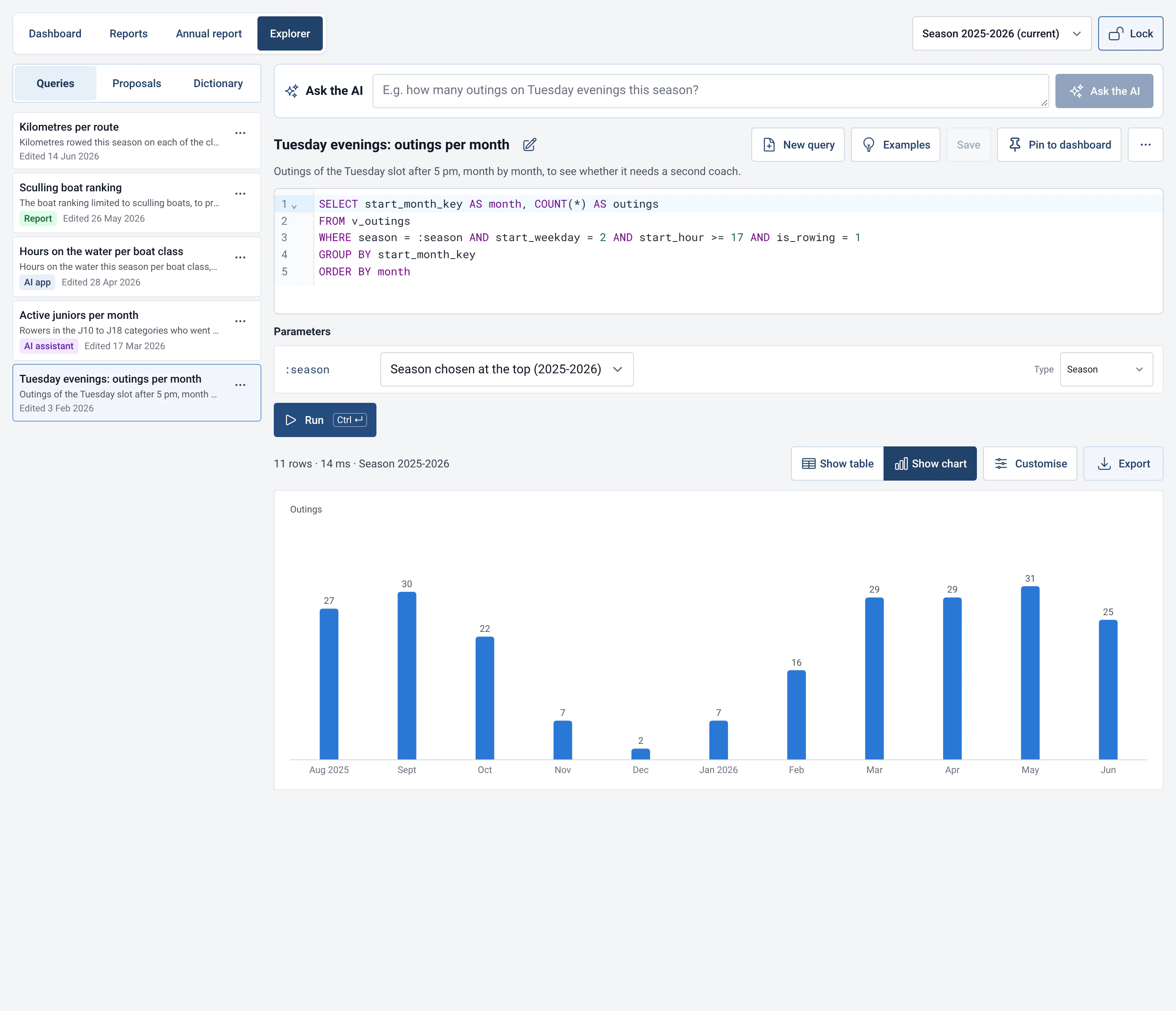
Ask a question that none of the 29 reports covers: Tuesday evening outings, a group’s kilometres, boats that never went out in winter.
The Explorer queries the club’s database in SQL, but only to read: you cannot break anything. It is reserved for officials: the admin password is asked when you open it.
Designed for volunteers
- Guided first steps: three steps and ten example queries, such as “The 10 most used boats” or “Late returns (over 15 min) by month”.
- The data dictionary describes each view and each column in plain English. A click on a column inserts it into the query.
- Errors are explained in plain terms, with the line and column. A typing mistake such as “LIMT” is underlined, with “did you mean LIMIT?” and a “Change to LIMIT” button.
- The :season parameter follows the season chosen at the top of the page. The other parameters are set under the editor.
- The result is shown as a table or a chart (bars, lines, areas, pie, heatmap, calendar, key figures). It can be exported as CSV, Excel or an image.
How to use it
- Open Statistics › Explorer and enter the admin password.
- Start from an example, from a report (“View SQL query” under “More actions”) or from the AI assistant (“Ask the AI”, see AI assistant and MCP server).
- Change the query, then click “Run” (or Ctrl + Enter). “Tidy up” reformats the query.
- Choose the chart, then “Save as…” or “Pin to dashboard”.
- Saved queries are listed in the “Queries” tab, with their origin: you, a report, the AI assistant or an AI app (MCP). They can be renamed, duplicated and archived, then restored from “Archived”.
Settings
- Dictionary: “Simplified views” (ready for statistics: season, dates split into month, week and hour, filters) and “Advanced tables” (the app’s raw data). The outings view is the most useful. Personal columns are marked “Personal data”. Contact details (email, phone, address, licence) are “always empty”.
- Proposals: charts proposed by an AI app connected through MCP arrive in the “Proposals” tab. You review them, then “Accept” or “Decline”. See AI assistant and MCP server.
- Performance: in Management › Statistics and AI › Performance, the profile (Auto, Economy, Standard or Powerful) sets the maximum duration of a query and the number of rows. Auto picks one according to the computer’s memory and cores.
Limits and details
- Read-only: only SELECT and WITH queries are accepted, one at a time. A DELETE, UPDATE or INSERT is refused with the message “Statistics only read data”: nothing has been changed. To correct an outing or a rower, use the Logbook or Management.
- Stopped after a time limit: a query that takes too long is stopped, with tips to shorten it and a “Run again” button. The limit depends on the computer’s profile: 10 seconds on Economy (Raspberry Pi and small computers), 30 seconds on Standard (a recent laptop), one minute on Powerful (a desktop computer). A “Stop” button also lets you interrupt a query by hand.
- Limited results: beyond the profile’s row limit (1,000 rows shown on Economy), the Explorer shows the first rows and says so. Add a filter or a GROUP BY to see everything.
- Data out of reach: statistics only read the views and tables in the dictionary. Boat reservations, the app’s settings and the admin password are not among them. Rowers’ contact details always read “empty”.
- Queries read the database and never write to it. On a small computer, a heavy query can slow the app down: that is why the time, row and memory limits follow the computer’s profile, and why a Raspberry Pi stays on Economy.
- Offline, the reports and the Explorer work. Only AI assistance needs the Internet.