
ContentsAI assistant and MCP server
For club officials
AI assistant and MCP server
Ask in plain English: the AI (Anthropic, OpenAI or a compatible service) writes the query. No rower data is sent. MCP option for Claude Desktop.
- Where to find it
- Statistics › Explorer › Ask the AI; settings in Management › Statistics and AI
- Available since
- version 2.1 (2026)
- Module to turn on
- None. The assistant and the MCP server are optional and stay off until you set them up.
What it is for
Get a statistic without writing any SQL. You ask the question (“How many youth rowers went out each month this season?”), the AI writes the query and the chart, and you check the result before saving it. Nothing is saved without you.
Two independent uses: the assistant built into RowingBeacon, with the API key of your choice, and the MCP server, which lets an AI app installed on the same computer (Claude Desktop, for example) read the club’s statistics.
Four ways to use it
- Anthropic (Claude): an API key created on console.anthropic.com, with some prepaid credit. A Claude Pro subscription is not enough.
- OpenAI (GPT): an API key created on platform.openai.com, with some prepaid credit. A ChatGPT subscription is not enough.
- Other compatible service (Mistral, Ollama…): any service that follows OpenAI’s format, including a model installed on the club computer (Ollama, LM Studio, llama.cpp). With a local model, the question never leaves the computer.
- Without a key: the assistant prepares a request to copy into your usual AI (Claude, ChatGPT, Le Chat…). You paste its answer back, and the query runs on your own computer.
Setting up and using the assistant
- Open Management › Statistics and AI, “Built-in AI assistant” card, and choose the “AI provider”: “Anthropic (Claude)”, “OpenAI (GPT)” or “Other compatible service (Mistral, Ollama…)”.
- Paste the API key and click “Save and check”: the app checks that the provider answers. For a compatible server, give the server address (https://…, or http://localhost… for a server on the computer), the model name and, if needed, a key.
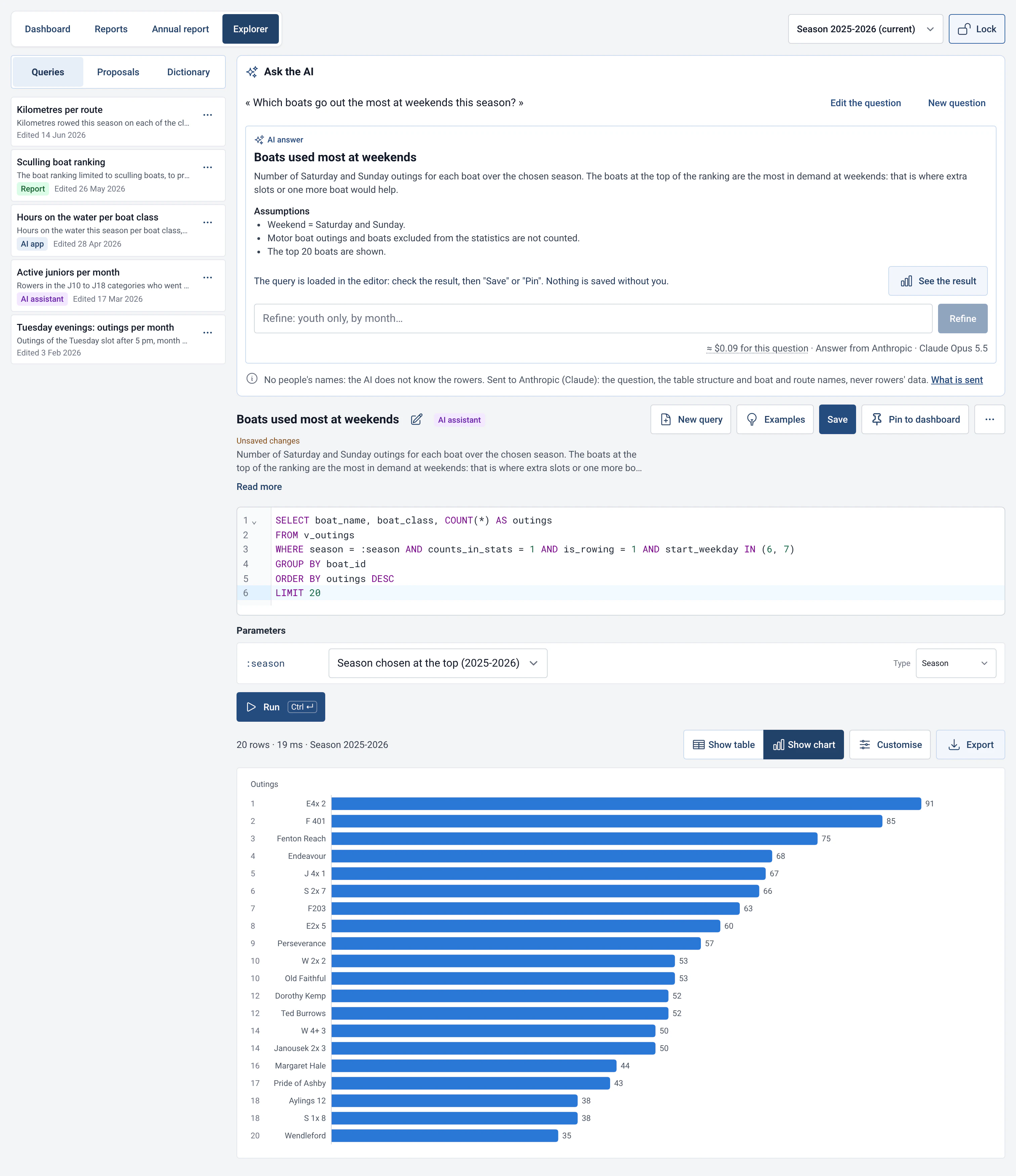
- In Statistics › Explorer, type your question in “Ask the AI” (2,000 characters at most), then click “Ask the AI”. The answer shows the explanation, the assumptions, the result and the chart, and loads the query into the editor.
- If the question is ambiguous, the AI asks a clarifying question with two choices or a free answer. If the query fails, the app asks the AI to fix it, up to twice, before showing you the error.
- “Refine” lets you narrow the result (“youth only, by month”). Check the query and the result, then “Save” or “Pin”.
Settings
- Where the key is: in the computer’s system keychain (or, if the system has none, in a protected file). Never in the club database, so never in backups or exports. Each provider keeps its own key: switching does not delete any key. “Delete key” erases it from the computer.
- Model: several models are offered for each provider, from the most reliable to the cheapest. The app shows “About … per typical question” (an estimate based on the public price, never for a compatible server). The cost is billed to the provider’s account.
- Send boat and route names: ticked by default. It lets you ask for “outings of the Albatross”. Untick it if you do not want those names to leave the computer.
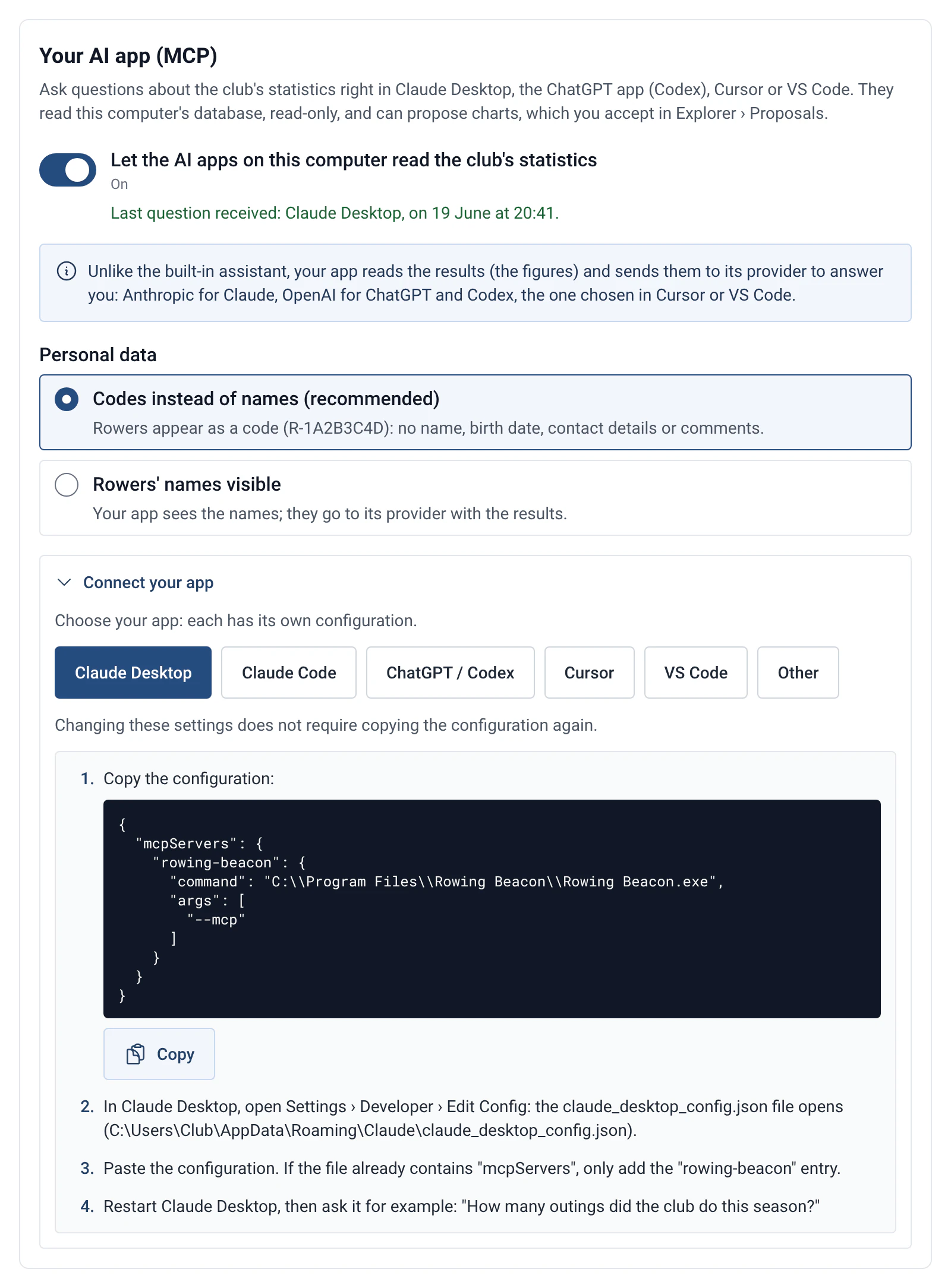
- Your AI app (MCP): off by default. The “Let the AI apps on this computer read the club’s statistics” box turns it on.
- Personal data (MCP): “Codes instead of names (recommended)” or “Rowers’ names visible”.
The providers
| Provider | Where the request goes, where the key is |
|---|---|
| Anthropic (Claude) | Straight from the computer to api.anthropic.com, with no other server in between. Key in the system keychain. |
| OpenAI (GPT) | Straight to api.openai.com. The app asks OpenAI not to keep the answer (“store” option off). Key in the system keychain. |
| Compatible service | To the address you save, and to no other. An https address, except for a server on the computer (localhost). Address and optional key saved together. |
Limits and details
- What the built-in assistant sends, with each question: your question exactly as you write it; the structure of the statistics tables (the name and description of the columns, never their content); the club’s outing types, the modules that are on, the season start and today’s date; boat and route names if the option above is ticked; after an error, the query’s error message, so the AI can fix it.
- What the built-in assistant never sends: rowers’ names, birth dates, contact details and notes; outings, comments and calculation results (the query runs on the club computer and its results stay there); the admin password and the rest of the database.
- Take care with your question: it goes as written. If you put a rower’s name in it, the name goes with it. The app notices: it offers “Replace with “a rower”” or “Send anyway”. It is better never to put a name in a question.
- Without a key: the copied request contains exactly the same items (question, table structure, boat and route names if the option is ticked). You paste it into the AI of your choice yourself.
- Server on another computer: the settings warn you when the server is not on this machine. It then receives the table structure and your questions, as Anthropic or OpenAI would. What it does with them is up to it: read its terms of use.
- MCP server: the option is a mode of the app itself (RowingBeacon launched with --mcp, without a window). The settings show a ready-made configuration to copy for Claude Desktop, Claude Code, ChatGPT / Codex, Cursor and VS Code, plus the command for any other MCP-compatible app. For Claude Desktop: copy the configuration, open Settings › Developer › Edit Config, paste it, restart Claude Desktop, then ask for example “How many outings did the club do this season?” Claude Desktop does not exist on Linux: choose another app.
- What MCP changes for privacy: unlike the built-in assistant, the AI app reads the results (the figures) and sends them to its provider to answer you: Anthropic for Claude, OpenAI for ChatGPT and Codex, the one you chose in Cursor or VS Code. In “Codes instead of names” mode, rowers appear as a code (R-1A2B3C4D): no name, birth date or free-text comments. Boat and route names, dates and figures are readable, though. In “Rowers’ names visible” mode, names leave the computer with the results: check that this matches what members have been told (GDPR). In both modes, contact details (email, phone, address, licence) are never readable.
- MCP never changes the database: it reads only. An AI app that wants to add a chart proposes it: the proposal arrives in Statistics › Explorer › Proposals, named after the app, and only becomes a query after you “Accept” it. While the box is not ticked, no app can read the statistics.
- The card shows “Last question received” with the name of the app, so you can check that the connection works.
- The time and row limits of the performance profile also apply to MCP. See Read-only SQL Explorer.