
ContentsExporting outings
For club officials
Exporting outings
The outing history, for the period you choose, as OpenDocument, Excel, CSV or JSON, for your reports and your files.
- Where to find it
- Logbook › Export
- Available since
- v0.14 (December 2024)
- Module to turn on
- None
What it is for
Prepare your reports, charts or grant applications with the tool of your choice.
How to use it
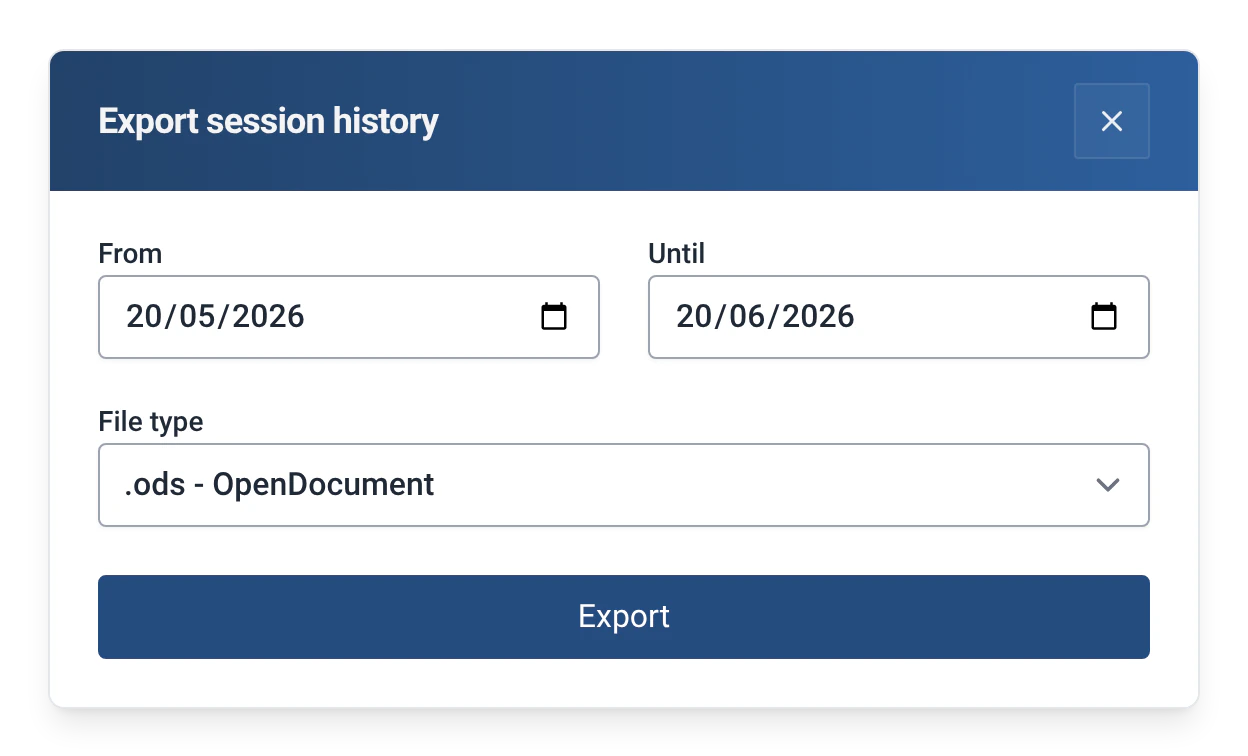
- In the Logbook tab, click “Export” and enter the admin password. The “Export session history” window opens.
- Choose the period (“From”, “Until”) and the “File type”.
- Confirm. The file is saved in the computer’s “Downloads” folder, and the app shows its name.
Formats
| Format | For |
|---|---|
| .ods | LibreOffice, OpenOffice (the default format) |
| .xlsx | Excel |
| .csv | Any spreadsheet, or importing into another tool |
| .json | Processing by a program |
Limits and details
- The rigging, coaching, distance, outing type and captain are in the export when they are used.
- If no outing matches the period, the app shows “No sessions found with these filters”.
- This export contains outings. To copy the list of rowers, boats and routes, see Rowers, boats and routes; to go back to efa2, see Switching from efa2, and back.