
ContentsInstallation in minutes
The club computer
Installation in minutes
One file to download, a profile to choose, three lists to paste and a password: the logbook is ready the same day, with no account.
- Where to find it
- First launch
- Available since
- the first versions (2024); profile choice in v2.0 (October 2026)
- Module to turn on
- None
What it is for
Have the logbook ready to use the same day, with no help and no account to create.
How to use it
- Download the latest version from the download page: the installer for Windows, or the AppImage for Linux.
- On Windows, run the installer. On Linux, make the AppImage executable, then open it.
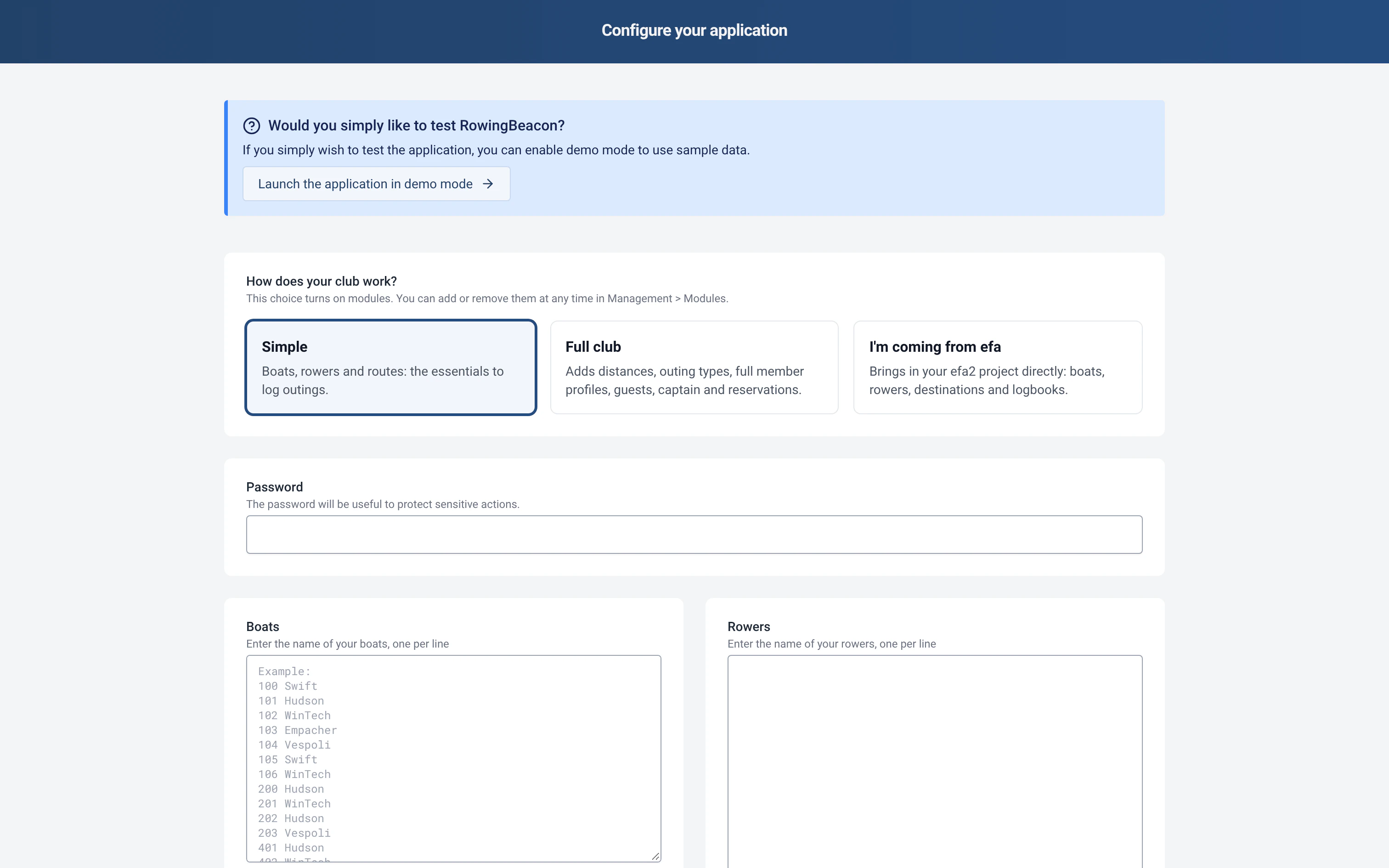
- On first launch, choose the language and the time format (12-hour or 24-hour).
- Choose a profile: “Simple” (boats, rowers and routes, the essentials for logging outings), “Full club” (adds distances, outing types, full member profiles, guests, captain, damages and reservations) or “I’m coming from efa” (takes over an efa2 project, see Switching from efa2, and back).
- Choose the admin password, paste your boats, your routes (optional) and your rowers, one per line, then click “Validate information”.
Limits and details
- To try it without entering anything, choose “Launch the application in demo mode”. Sample data is loaded, and the app shows the admin password for demo mode.
- The admin password protects the sensitive actions: Management, deleting an outing and closing the application.
- When installing, Windows, the browser or the antivirus may show a security warning. It appears because the app is not yet widespread enough to be recognised by these tools. You can ignore it, or first look at the source code on GitHub, or even build the app yourself.
- No account needs to be created, and no Internet connection is needed after the download.
- Windows: the installer is an .exe file; there is no longer an .msi file. If version 2.0.1 was installed with the .msi, uninstall it first: your data stays on the computer.
- Later versions are installed from within the app. Only a club on version 2.0.1 or earlier has to install version 2.1 by hand, once. See Automatic updates.
- There is no macOS version. See other tools.